
First version November 7, 2026 (from the QA round "our apps page", E:\work\docs\qa\apps-hub-2026-11-07.md)
1. Open the apps page
Use the "Apps and programs" link at the bottom of every page, on the home page or on the products page, or go to /apps.
Apps are grouped into POS and retail · Office and productivity · Remote support · Government jobs and exams · Games and free tools. The buttons at the top jump to each group.
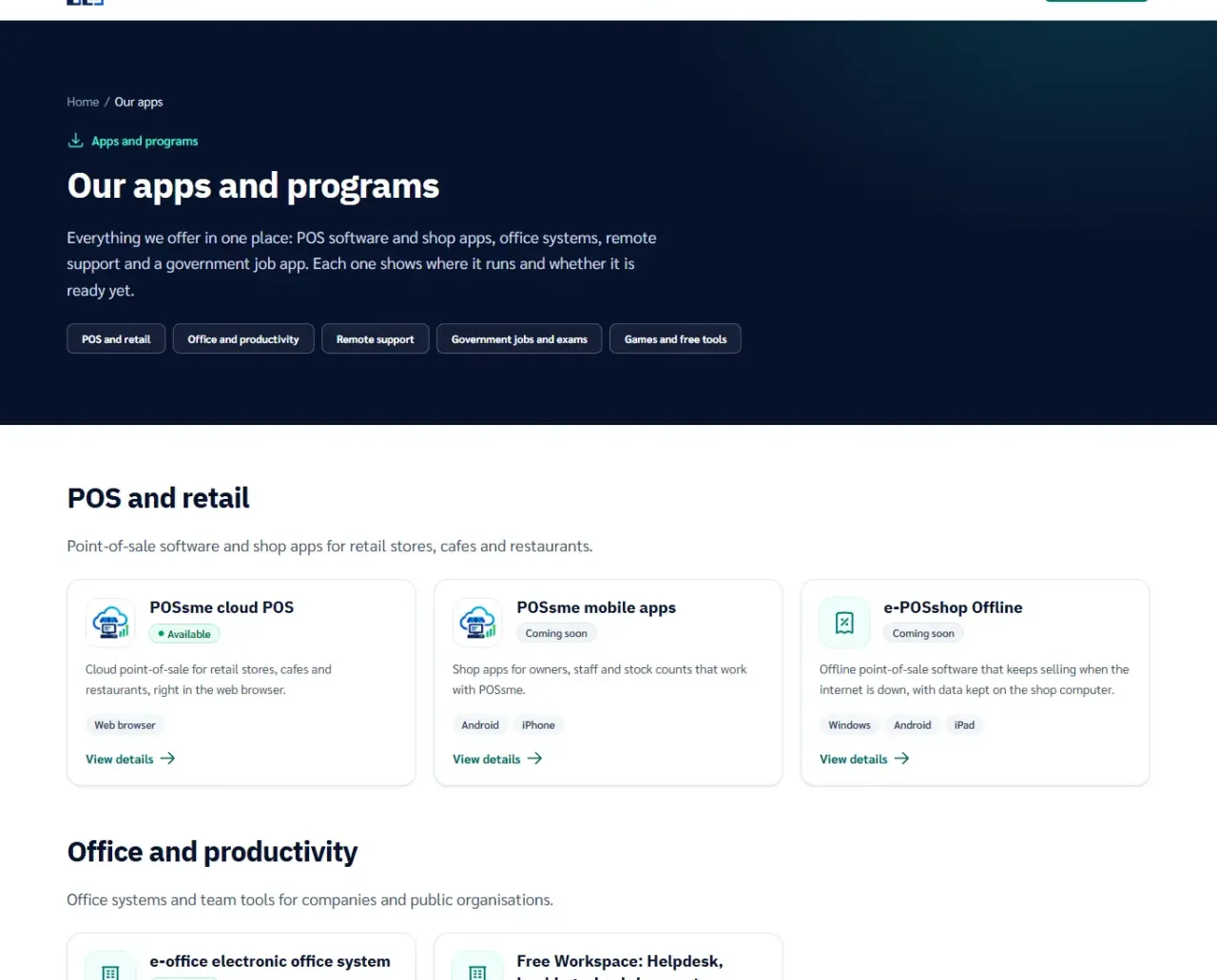
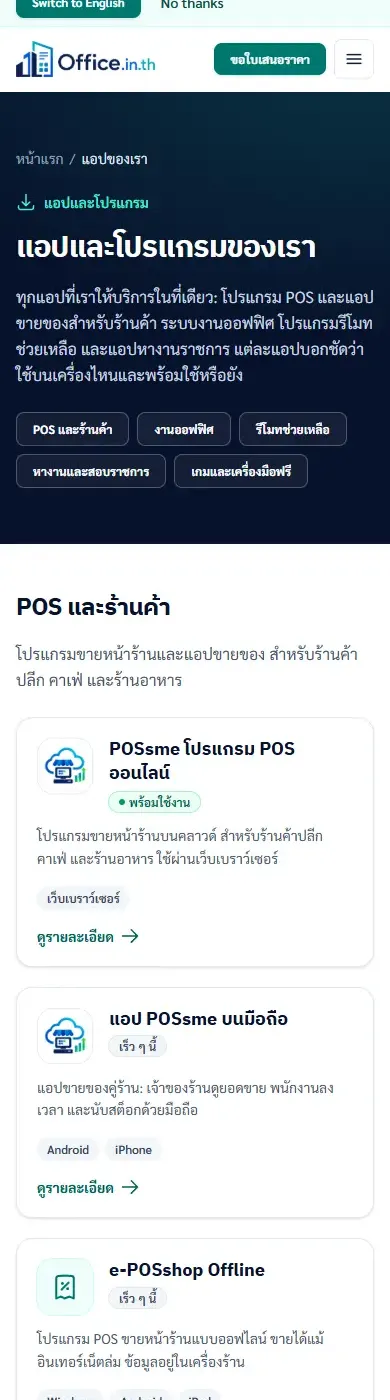
On a phone the cards stack one per row, with no boxes that scroll on their own.
2. Read an app card
Each card shows:
- the app name and a one-line value
- the status: "Available" = ready to use · "Beta" = open to try but still being improved · "Coming soon" = not available to download yet
- Runs on: Android, iPhone, iPad, Windows or web browser
Tap a card to open the app's page.
3. App page and downloads
The app page shows what it does, who it is for, key features, screenshots, FAQs and a "Platforms and where to get it" box.
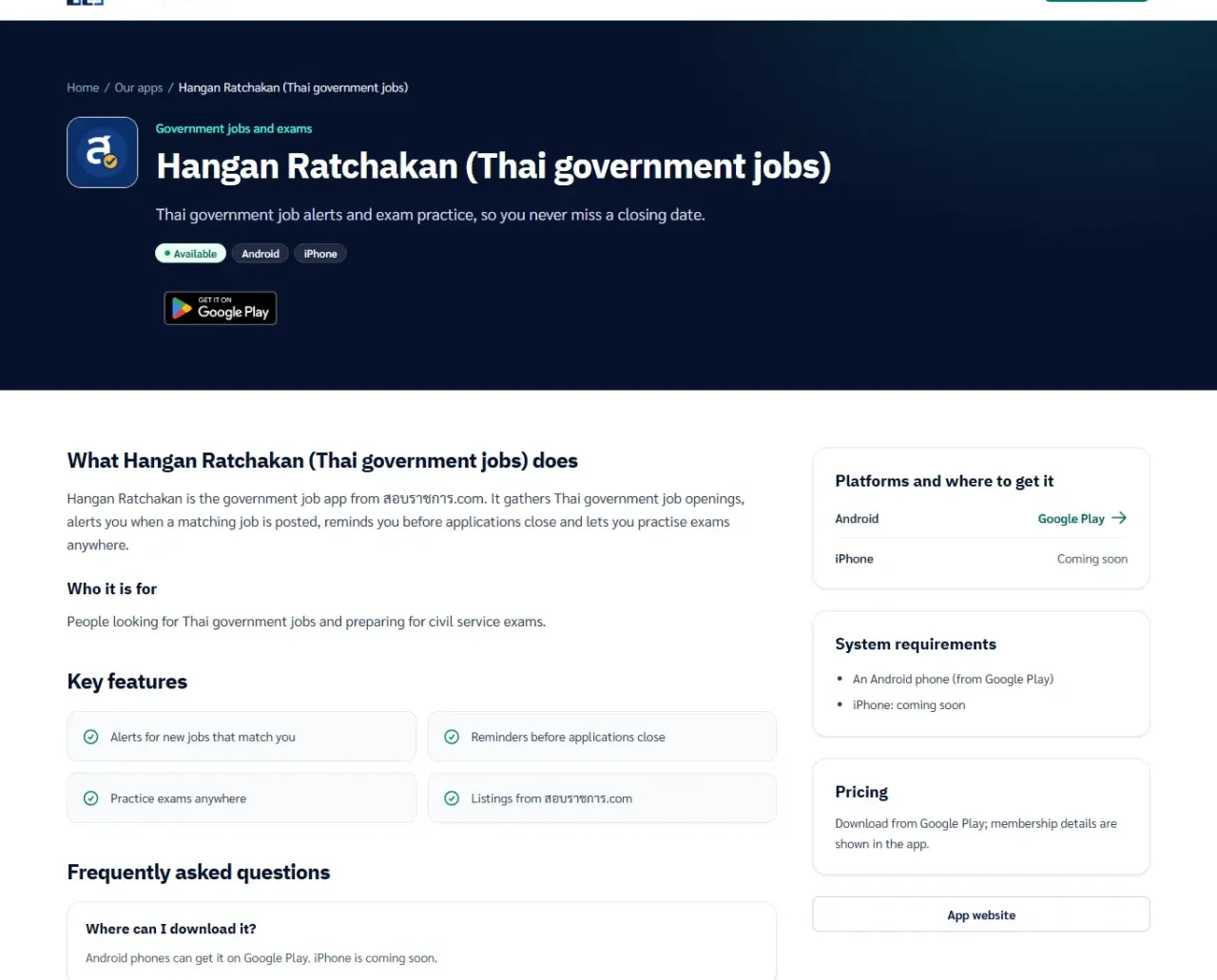
- A Google Play or App Store badge appears only when the app is really live in that store, and opens the store listing directly.
- Platforms marked "Coming soon" have no download link. Use "Ask us or hear when it launches" to contact our team.
- The "Pricing" box shows only published information. If there is none, ask our team.
4. Staying safe
- Download apps only from the links on these pages or from the official stores.
- If someone calls and asks you to install a remote tool, never install it or accept a connection from someone you do not know.
5. Change the language
Use the language switch in the header or footer (ไทย English 中文 日本語 한국어). Page text follows the language; app details that are not translated yet show in English, then Thai.
FAQ
Why do some apps say "Coming soon"?
They are still in development or waiting for the store. We add download links only when the app is really available.
I need an app that is not listed
Use "Contact our team" at the bottom of the page. Tell us what you need and we will suggest an app or build one.