
First edition 29 Oct 2026 · Last updated 7 Nov 2026 — rewritten from real play before the public launch: the practice run, the Open port button, Automatic / Manual control, the guest trial day, full controls for keyboard, touch and gamepad, and real screenshots on desktop and phone.
In the Port game you own a small coastal pallet harbour. Take shipping jobs (contracts), open the port, then watch workers, the crane and trucks move the cargo until every job is delivered. For signed-in players the server decides every result.
1. Getting started
Way in from the city: walk to the PORT-CONTROL quay. Next to the SkyRider City kiosk stands a harbour-office booth with a ⚓ PORT sign. Step close and press E (or tap the on-screen button / click the booth); a card opens with ▶ Play My Port.
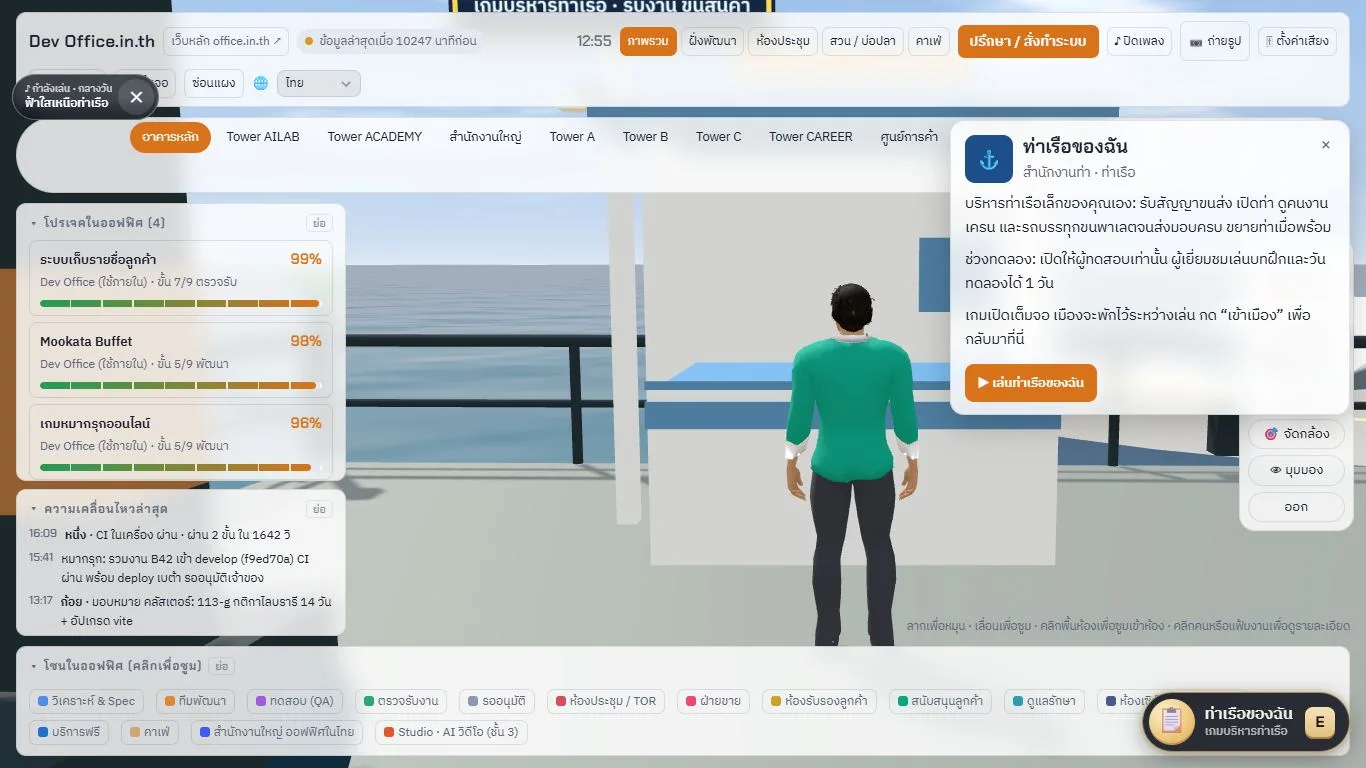
The game opens full screen, separate from the city. Enter city at the top left leaves the game. At the top right are ? (opens this guide), ⛶ (full screen, or press F) and ⏸ (pause, plus language, sound and full-screen settings).
The first time you play, Practice before you start opens: 4 short steps labelled "Practice mode — not a real job", which never touch your coins or reputation. Press Next for each step. In step 3 tap pallet 1, then Yard, and repeat with pallet 2. You can press Skip tutorial at any time and replay the practice later from ⚙ settings.
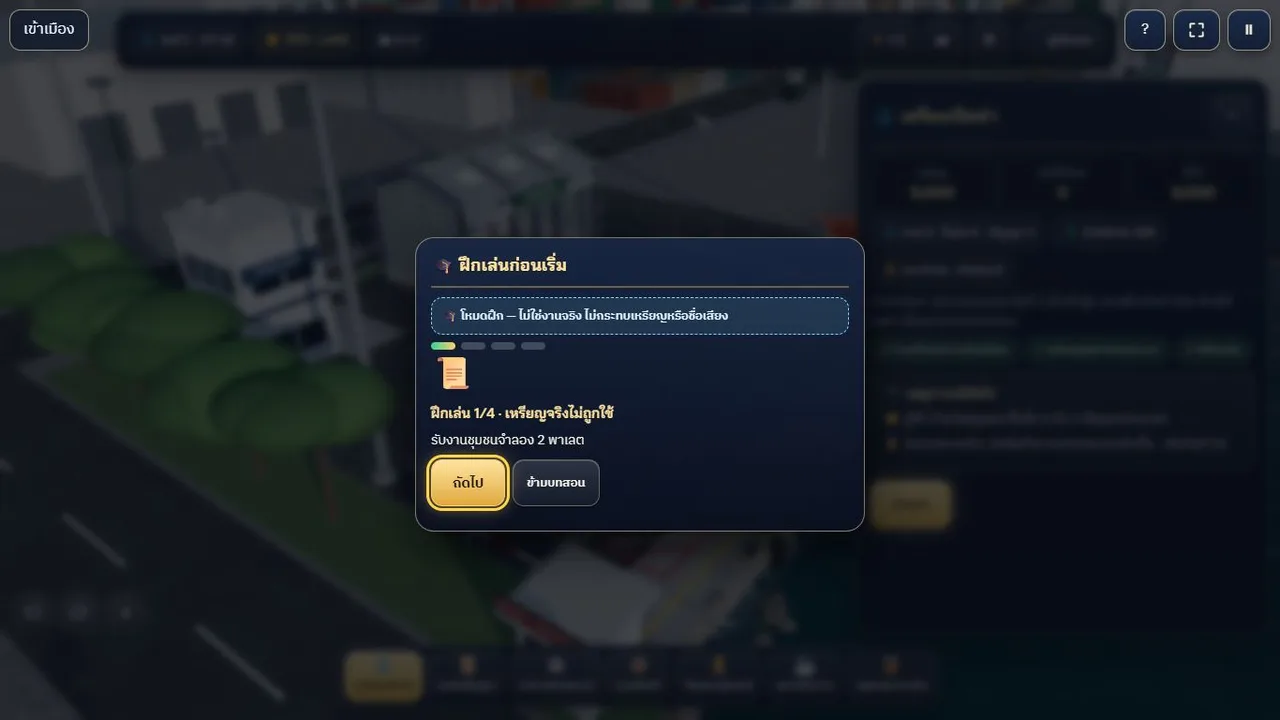
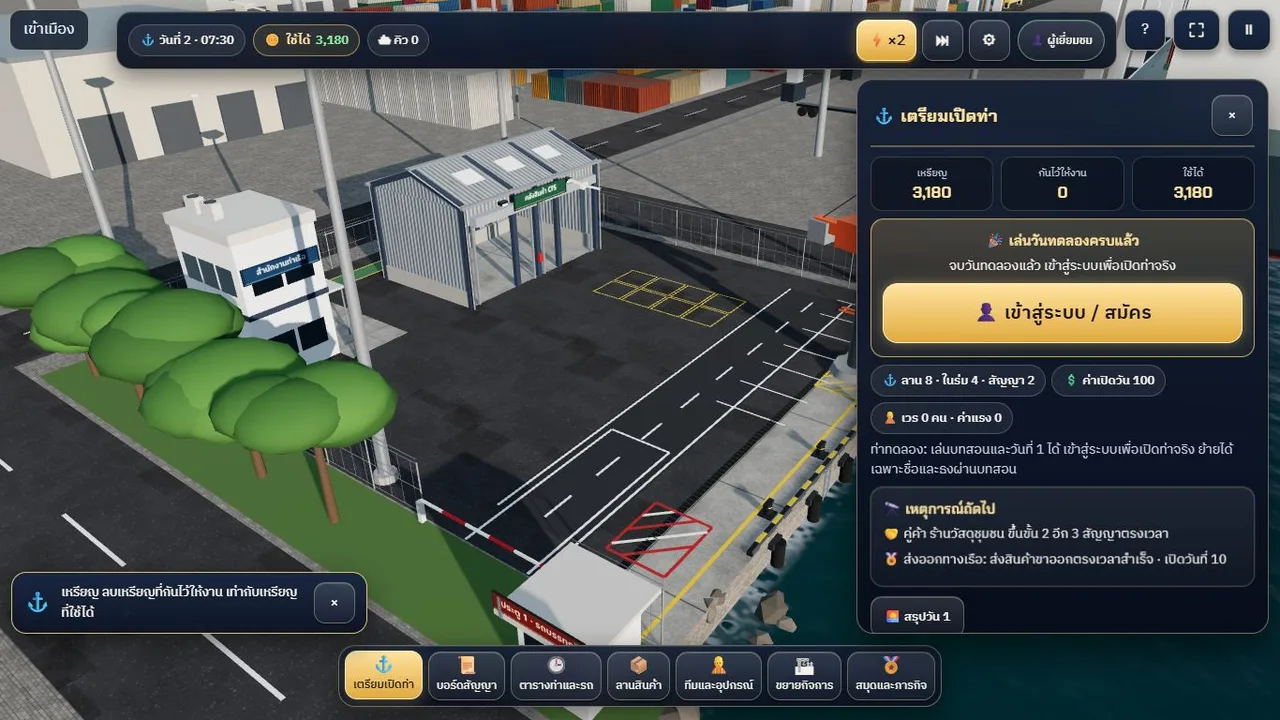
- Not signed in (guest): you can play the practice and one trial day with trial coins that live on your device only. When the trial day ends the game invites you to sign in to open your real port (only the business name and the finished-practice mark carry over).
- Signed in: your port is saved on the server and continues on any device.
2. The screen
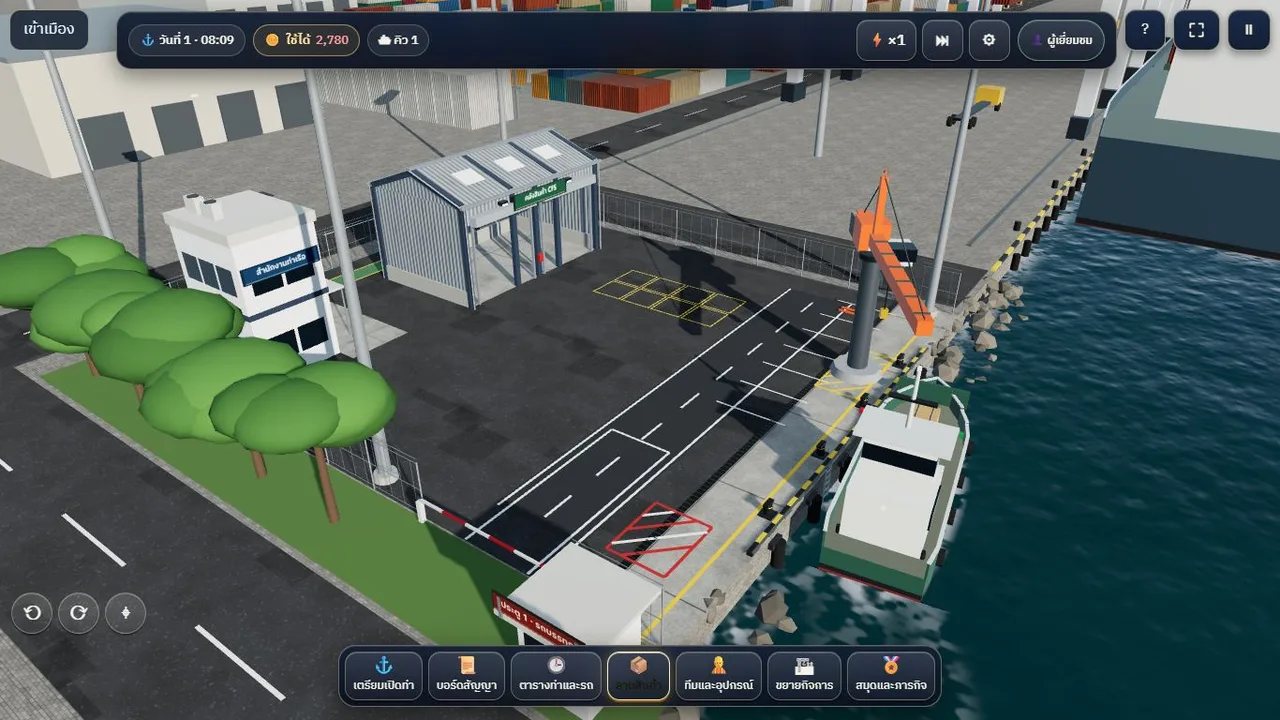
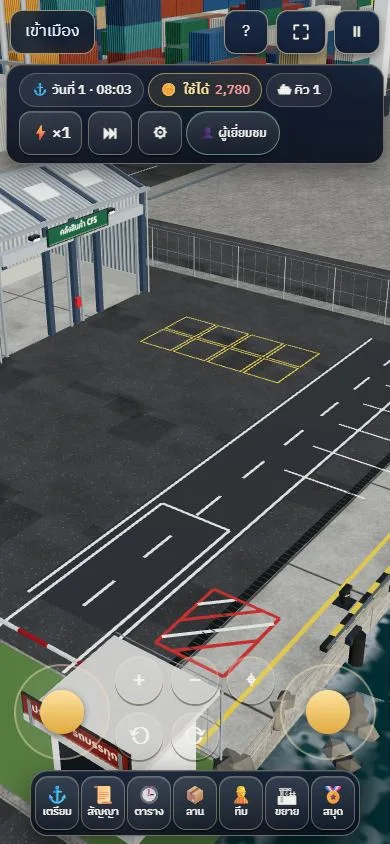
- Top bar: in-game day and time (07:30–22:30) · coins Available · boat/truck queue · ⚡ speed ×1/×2 · ⏭ skip to the next event · ⚙ game settings · save status
- Seven tabs at the bottom: ⚓ Before opening · 📜 Contracts · 🕒 Service schedule · 📦 Cargo yard · 👷 Team & equipment · 🏗 Expansion · 🏅 Book & goals (phones and tablets show a short name under each icon)
- Press × on a panel header to close it and see the whole scene
- The camera buttons ⟲ ⟳ and ⌖ (reset view) are at the bottom left
3. Playing one day
Step 1 Take a contract (📜 Contracts)
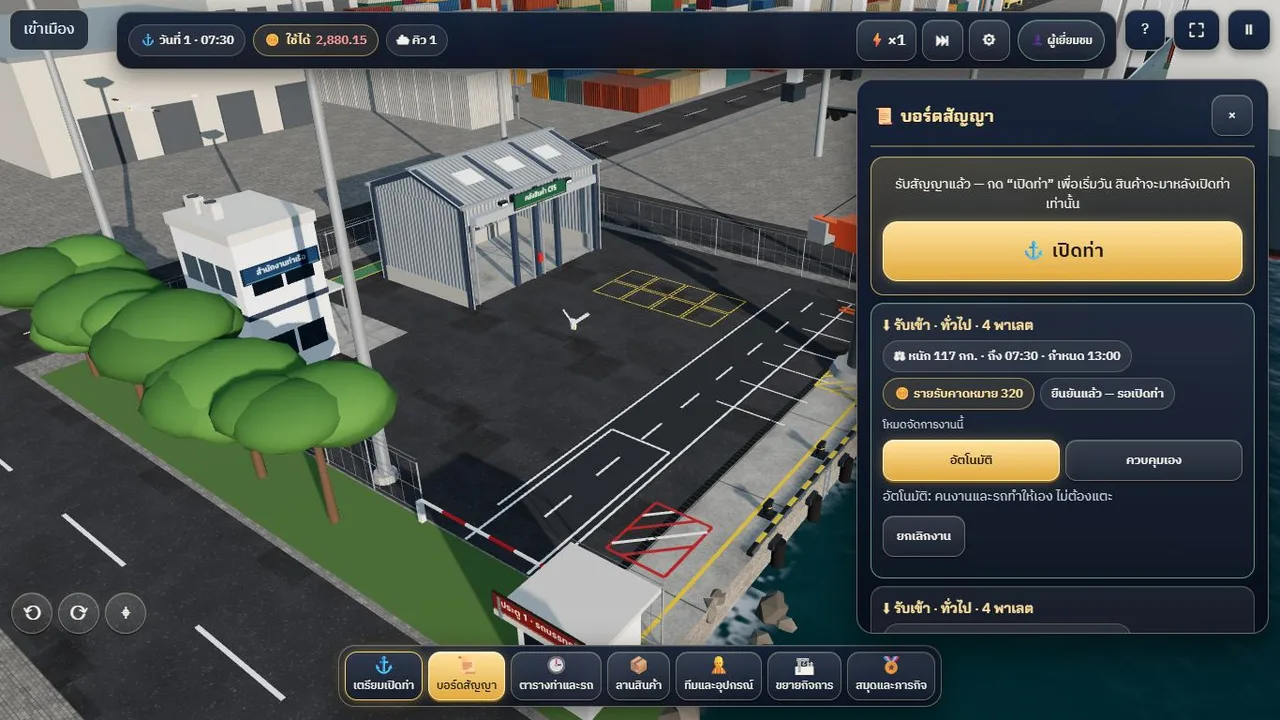
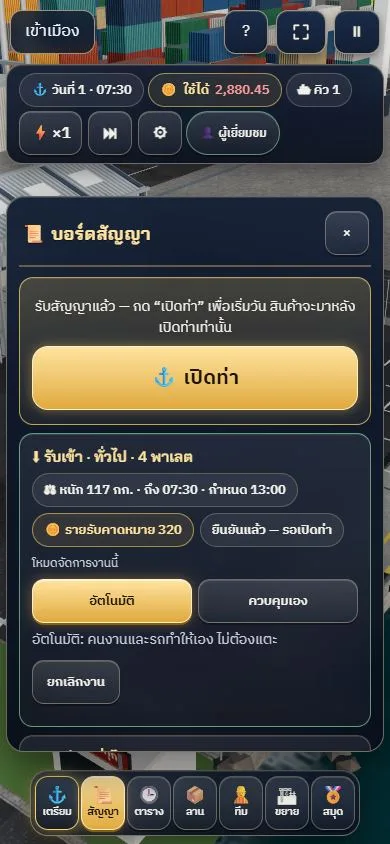
Each card shows whether it is an inbound or outbound job, the cargo type, number of pallets, weight, arrival time, deadline and expected revenue. Press Accept and the contract shows "Confirmed — waiting for the port to open".
Choose how each contract is handled (the lit button is the current mode):
- Automatic — workers and trucks do it for you, no tapping needed (the default, best for new players)
- Manual control — you tap each pallet, then its yard cell or destination
You can cancel a job before the port opens.
Step 2 Open the port
Cargo arrives only after you open the port. Press the big gold ⚓ Open port button at the top of the Contracts, Cargo yard or Before opening tab. If something is missing the button reads "Check readiness before opening" and takes you to the list (entry and walkways · enough coins for the daily cost and wages).
Step 3 Cargo in the yard (📦)
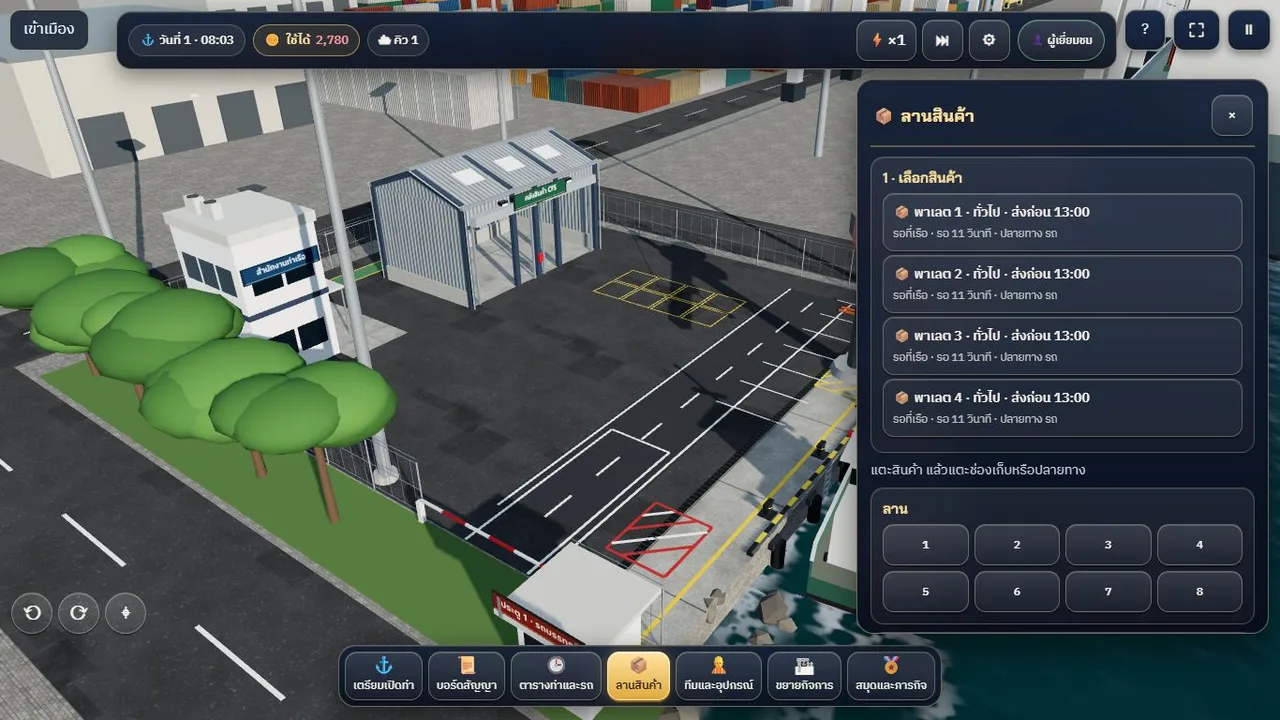
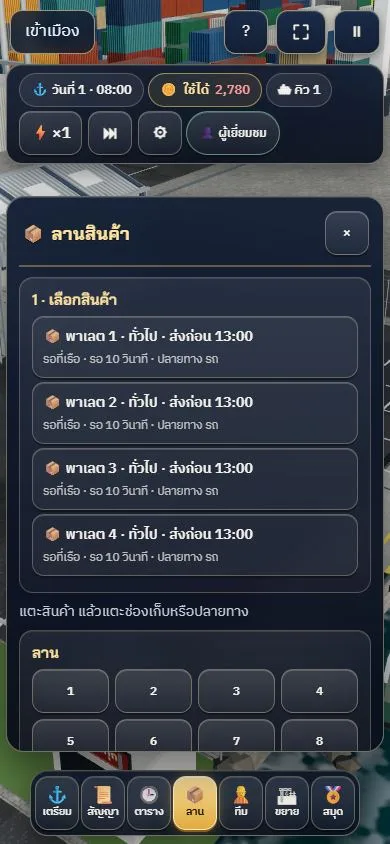
A few seconds after opening, the boat berths, the crane lifts pallets ashore and they appear under "1 · Choose cargo". Each card shows the pallet, its type, deadline, where it is now and where it goes.
- Automatic: workers carry pallets to yard cells, then a truck reverses into the loading bay, takes the pallets on its deck and drives off
- Manual control: tap a pallet card, then a glowing yard cell 1–8 / covered 1–4, or the truck/boat button
- Before any cargo arrives, cells are grey with a "No cargo yet" label and a line telling you what to do next
- Press ⚡×2 to speed up. ⏭ skips once the crew and trucks are free (while work is still running the game says so and suggests speeding up instead)
Step 4 End of day and summary
The port stops taking work at 19:30. When the day ends (or you press End the day early in the ⚓ tab, which first tells you what you would lose) a summary shows revenue, expenses, operating result, jobs completed/late, what caused waiting, harbour-book points and a tip for the next day.
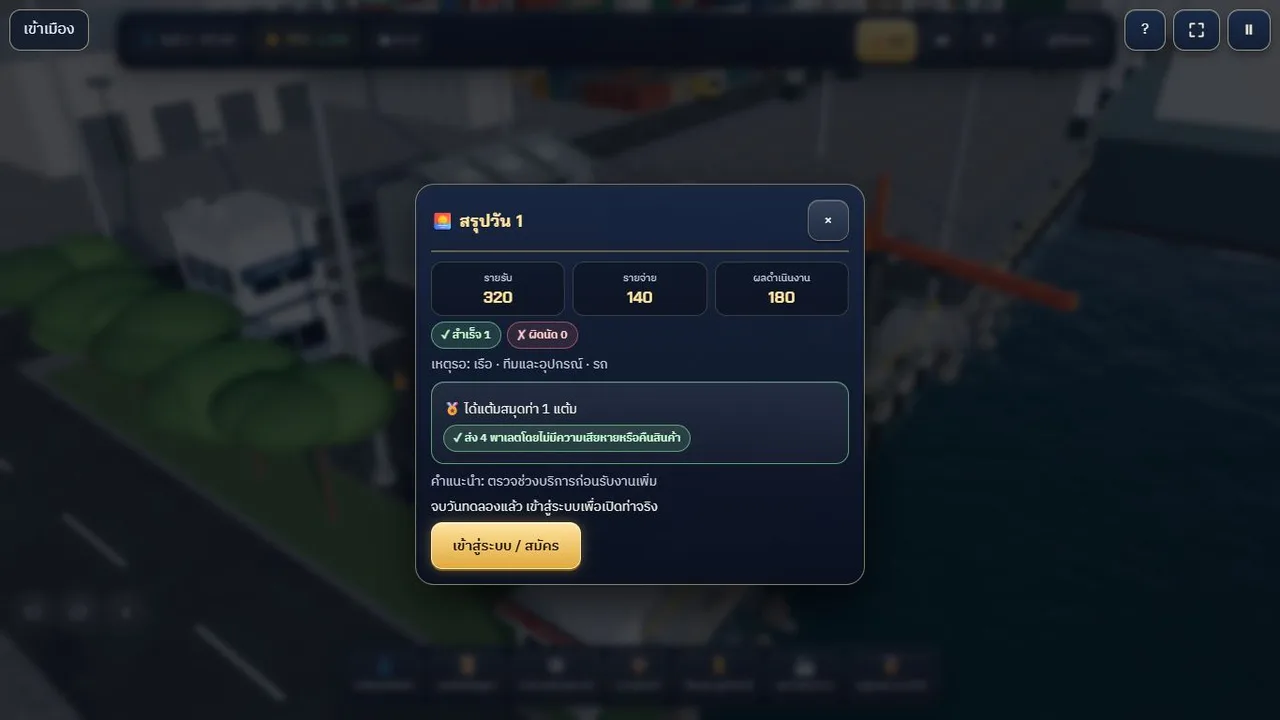
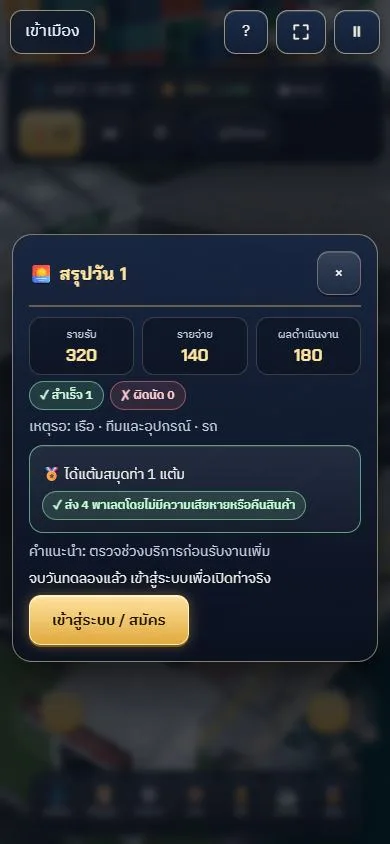
A guest who finishes the trial day sees a "Trial day finished" card with a single Sign in / register button.
4. Coins, top-ups and rewards
- Available = coins in the port account − the amount Reserved for work (costs and return deposits of accepted contracts)
- Every day the port is open costs a daily fee for its size plus wages for the staff on shift. Revenue comes from contracts delivered successfully
- Signed-in players can top up the port account from the city's shared wallet with the 🪙 button in the ⚓ tab while preparing the day. The game suggests a starting amount you can change with ±100 / ±500 and shows today's allowed range — top-ups open when announced; until then the dialog shows that they are closed
- Successful deliveries earn harbour-book points and challenge progress (🏅 tab). Once you meet the conditions you can expand to a level 2 port (🏗 tab)
Stats & leaderboard
The top of the 🏅 tab is Stats & leaderboard (signed-in players only). Pick Today / Week / Month / Year / All time (Thai time, weeks start on Monday).
- Your stats: pallets delivered, days closed, jobs on time, your best day, your day streak, heavy cargo
- The leaderboard ranks by pallets delivered, then by jobs delivered on time
- Only days the server has checked count: a day closed faster than real time counts once enough real time has passed, and an account under review is not listed yet
- To keep your name off the board, turn on Hide me from the leaderboard (your own stats still count). The board never shows e-mail addresses
Sound and music
While you work you hear pallets being lifted, the crane setting loads down and boats coming alongside, with a quiet harbour tune. Switch them in ⚙ settings (Sound effects, Harbour ambience, Harbour music); the overall volume is under the game's ⏸.
Night
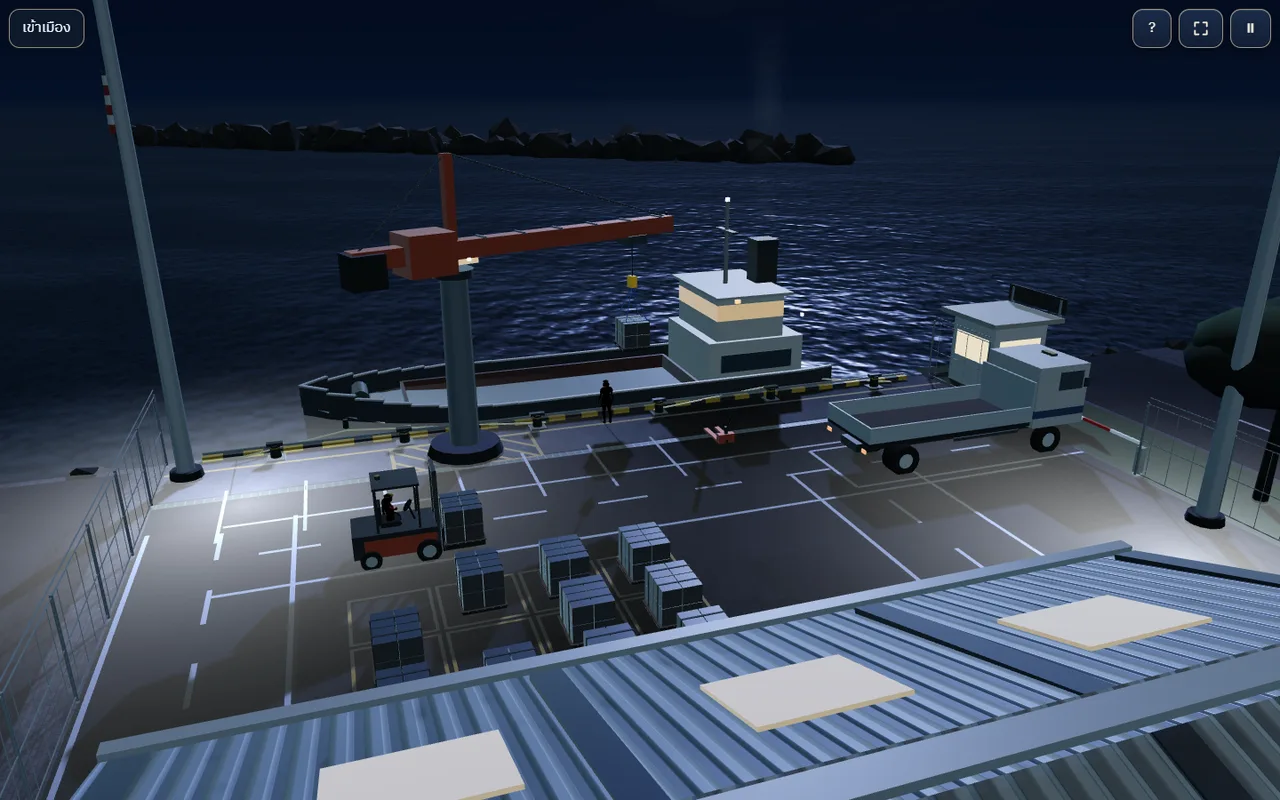
After sunset the port is lit by its lamp masts and windows. Turn the camera toward the sea (east) to see the moon and its path on the water.
5. Controls
| Device | Turn camera | Zoom / move | Menus and buttons |
|---|---|---|---|
| Mouse + keyboard | Drag the mouse · Q / E · ⟲ ⟳ buttons | Mouse wheel zoom · WASD or arrow keys move · ⌖ reset view | Click · T panel on/off · [ ] change tab · Tab / Enter pick a button · Esc close a dialog · P pause · F full screen |
| Touch (phone / tablet) | One-finger drag · two-finger twist · ⟲ ⟳ buttons | Pinch · + − buttons · on-screen stick moves | Tap |
| Gamepad | Right stick | Left stick moves · LT / RT zoom | A select · B back/close · X pause · Y panel on/off · LB / RB change tab |
6. FAQ
- I accepted a job but the yard is empty — press ⚓ Open port first; cargo only comes after that
- ⏭ says work is still running — skipping works once the crew and trucks are free; use ⚡×2 meanwhile
- I cannot change truck routes — routes can only be changed while preparing the day, before opening
- Not enough coins to open — take fewer jobs, put fewer staff on shift, or (signed-in players) top up once top-ups are open
- Leaving the game — press Enter city at the top left; the game saves before leaving