An AI front desk that answers from your own documents
Visitors ask the screen by voice, staff ask in chat, and every answer cites documents your organisation has approved. Use it in the cloud, on a PR screen, or on a machine installed on your premises.
The same questions shouldn't take your team's whole day
Front-desk and admin teams answer the same questions every day, while the answers sit in hard-to-find documents or in a few people's heads.
The same questions daily
What time do you open? Which floor is the meeting room? Which papers do I need? Questions like these keep pulling staff away from their main work.
How AI PR helps
AI answers at once, from the same documents your staff use
Information is scattered
Circulars, manuals and notices live in different places, and scanned files can't be searched.
How AI PR helps
One place for all documents, Thai scans read automatically, searched with plain questions
Wrong answers cost trust
Answers passed on by word of mouth may not match the latest notice.
How AI PR helps
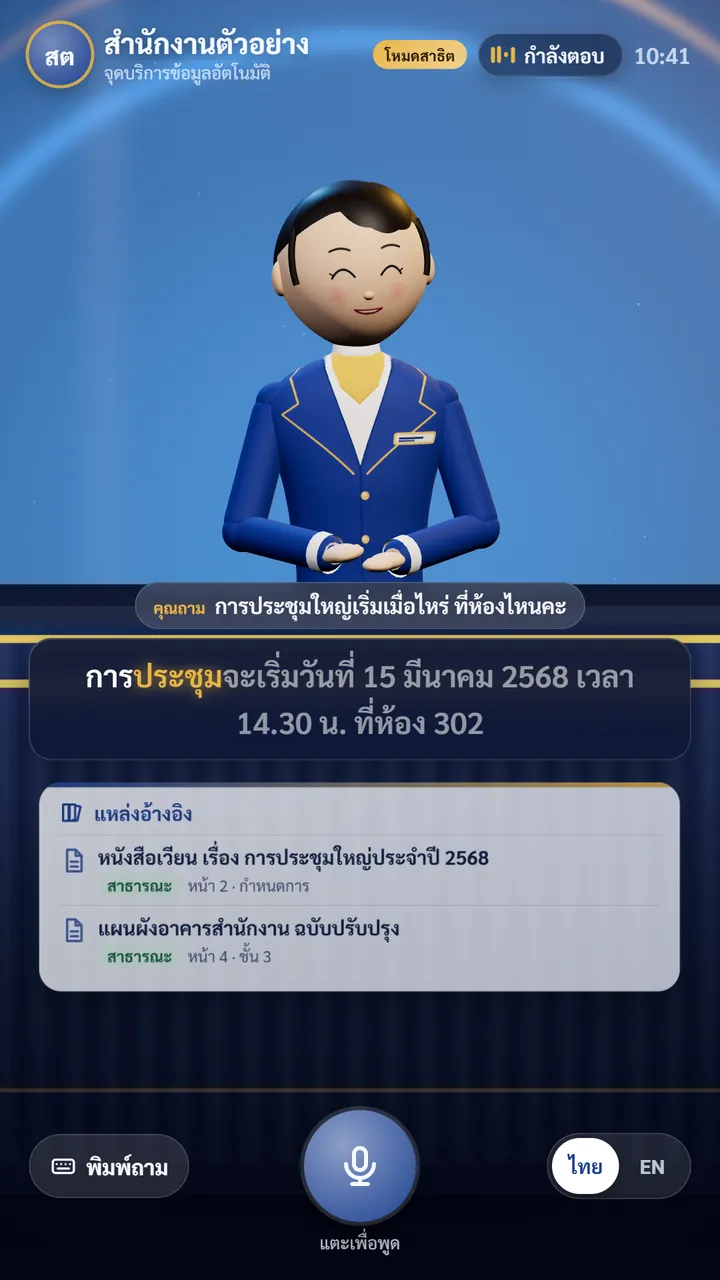
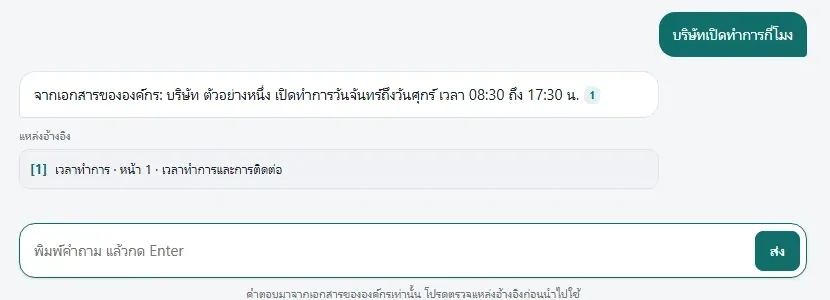
Every answer names its source; when nothing is found it says so and shows how to reach staff
What it does
From the lobby screen to the back office
Every part uses the same document library and the same access rights.
PR screen · on-premises
A PR screen that answers by voice
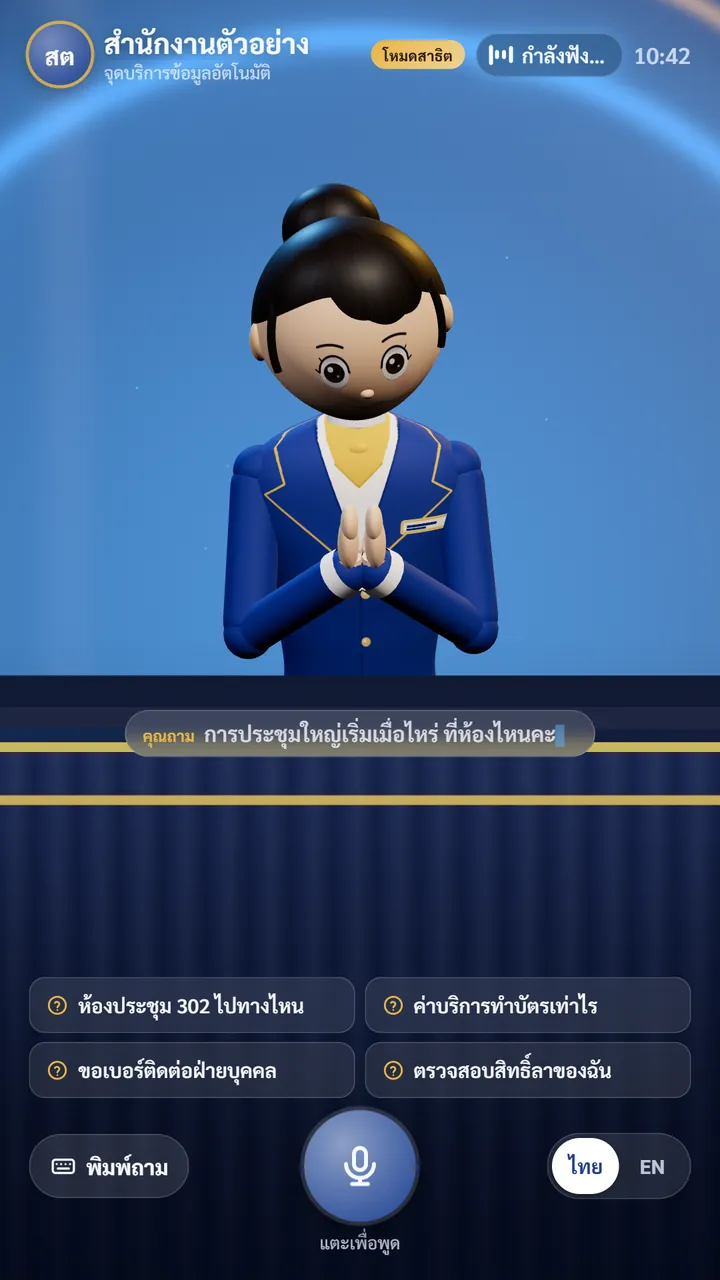
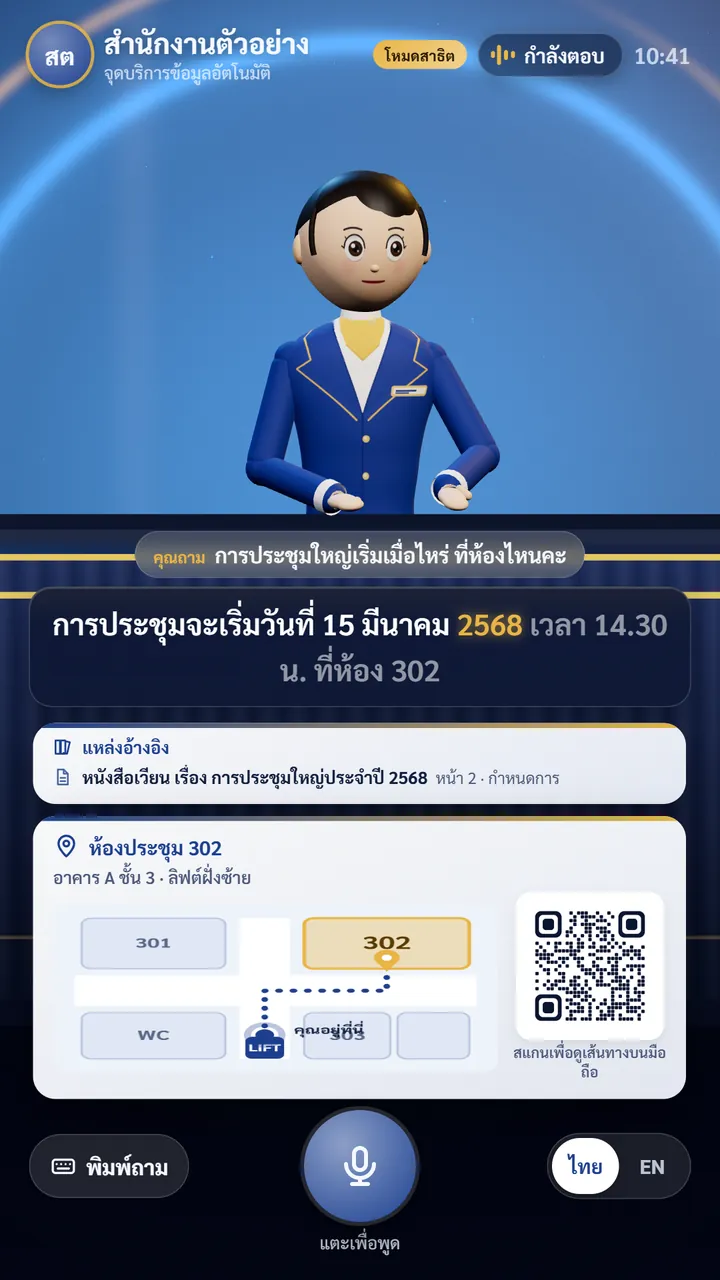
Stand in front of the screen and just speak. The character answers aloud with source cards, a map and a QR code for directions. You can interrupt at any time, and it checks that the person in front is really speaking, so passers-by are not answered.
AI — AI character, not a real person
All forms
Document chat with sources
Type a question in plain words. The system searches approved documents and shows which document and page the answer came from.
On-premises
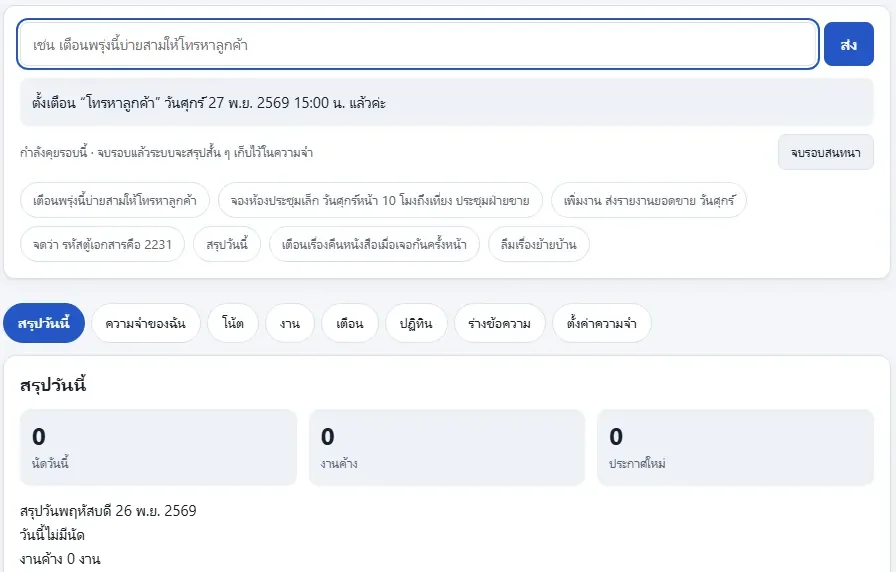
Personal secretary
One sentence is enough, e.g. "remind me tomorrow at 3 pm…". Notes, tasks, appointments and room bookings (always read back before confirming), visible only to their owner.
On-premises
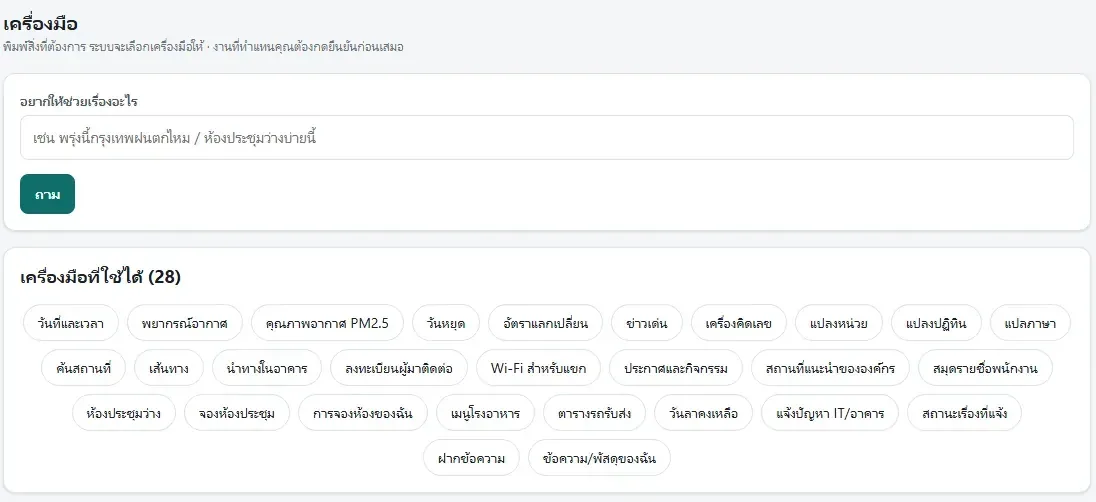
28 built-in tools
Free rooms and bookings, holidays, routes, visitor registration, IT/building issue reports, guest Wi-Fi and more. Anything done on your behalf always needs your confirmation first.
On-premises
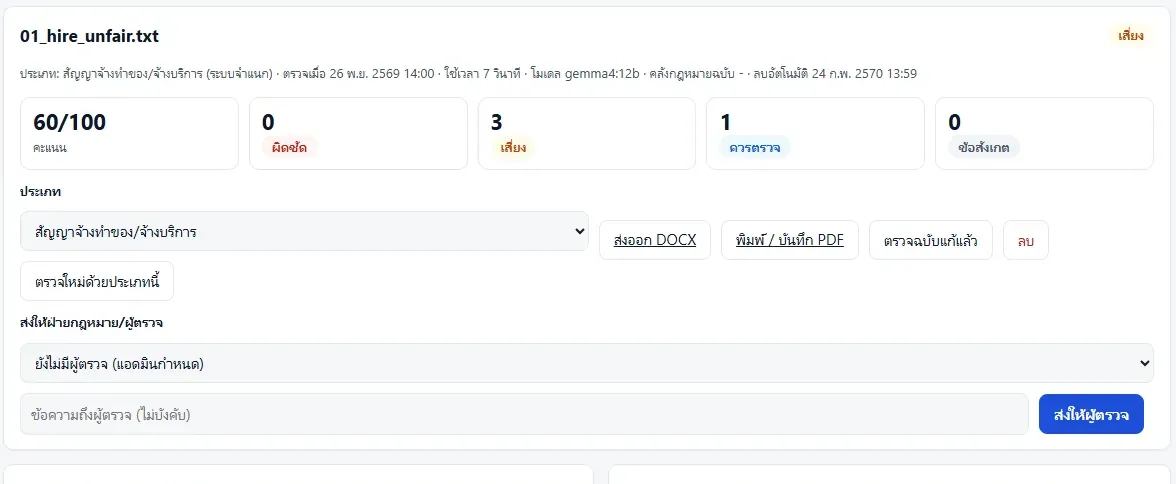
Document check against law and policy
Send a contract or document and the system points out risky clauses with the related section or policy item. A first screening before your legal team, not legal advice.
All forms
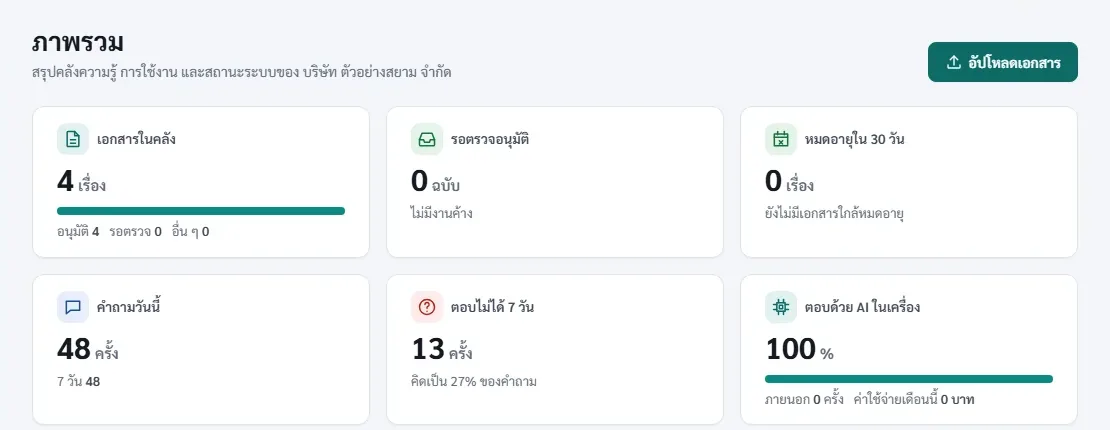
Back office for admins
Upload, review and approve documents with access levels, see unanswered questions so you can add documents, and manage users and departments.
Reads Thai scans (OCR)
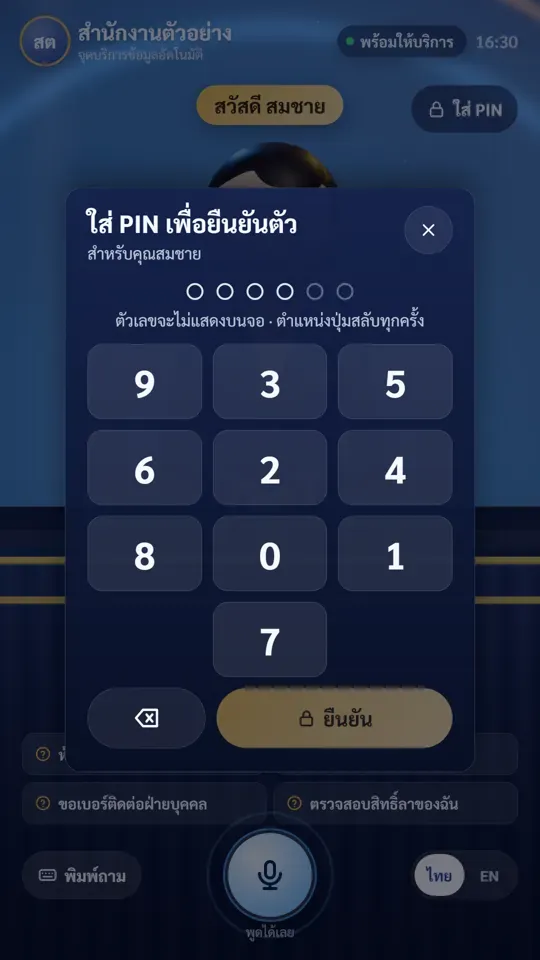
Staff face recognition + PIN
Interrupt any time
Knows who is speaking
Thai / English on screen
Map + directions QR
Works with or without a touch screen
Real screenshots of the system · the data shown is sample data
Where to use it
Anywhere people ask the same things
Example uses and questions the system can answer once the organisation adds the related documents.
Lobbies of offices and buildings
Welcome visitors, give directions to rooms and floors, and register visitors.
Example questions
“How do I get to meeting room 302?”
“What's the HR contact number?”
Hospitals and clinics
Service steps, opening hours and where departments are, easing the information-desk queue (service information only, not medical advice).
Example questions
“Which floor is medical records on?”
“What do I need for a new patient card?”
Universities and schools
Answer students and parents about the academic calendar, petitions and buildings.
Example questions
“Where do I apply to defer tuition fees?”
“What time does the library open?”
Companies and offices
Staff ask about rules, benefits and manuals in chat; internal information follows department rights.
Example questions
“How many days ahead must I request annual leave?”
“How do I claim travel expenses?”
Government agencies
Answer citizens from notices and service manuals; choose the on-premises form when data must stay inside the agency.
Example questions
“Which documents do I need to renew a licence?”
“Until what time can I submit?”
How would your organisation use it?
Tell us briefly and see it work with the kind of questions you get.
Organisations that want to start fast without buying hardware
Reception points with visitors every day
Organisations whose data must stay inside
Getting started
Switch it on from My Office
Install the screen kit, then pair it with the server using a one-time code
A technician installs and hands over the machine on site
Hardware
Nothing to buy; works in a browser
Raspberry Pi 5 (or Pi 4), screen, USB camera, mic and speaker
A Windows 11 PC with a 16 GB NVIDIA graphics card
AI that answers
Our AI, no key of your own needed · AI charged by use
Whatever the connected server uses
AI on the machine · external AI optional
Where the data lives
Our cloud, separated per organisation
On the server, never on the screen device
On the organisation's own machine
Document chat + sources
Yes
By voice at the screen
Yes
Character answering by voice
Later phase
Yes
Yes
Staff face recognition + PIN
—No
With an on-premises server
Yes
Secretary · tools · document check
Later phase
Voice tools, e.g. room booking, visitor registration
Yes
Price
Ask about packages
Ask about packages
Ask about packages
"Later phase" items are not available yet; we will tell you when they are ready.
How it works
Up and running in 3 steps
1
Add your documents
Upload manuals, circulars and notices, scans included. An approver checks them and sets the level, such as public or internal to a department.
2
Set rights and service points
Set departments, users and roles, and register the PR screens you will use. Unregistered screens cannot open.
3
Start answering
Visitors ask at the screen and staff ask in chat; admins review unanswered questions to add documents.
Security and PDPA
Information reaches only the people allowed to see it
What the system really does every time, with nothing extra to set up.
Rights checked before searching
Documents are filtered by department rights before every search. "Not found" and "no access" give the same message, so nothing reveals that a document exists.
Personal data masked before external AI
Names, surnames, emails and phone numbers are masked before sending, and documents marked "do not export" are never sent.
A face alone never opens internal data
A recognised face sees public information only; internal data needs a PIN or sign-in. It confirms the name before anything personal, shuffles the PIN pad every time and does not store camera images.
Face and voice need consent
Staff enrol only if they choose to. A voice is used just to greet by name, never to verify identity; no audio files are kept, and it is deleted at once when consent is withdrawn.
Audit log
Settings and document approvals are written to an audit log admins can review. On-premises, the question history is kept for 90 days and then deleted automatically.
The screen device stores nothing
The screen device holds no organisation data and no passwords. It pairs with the server using a one-time code and can be revoked at once if lost or moved.
AI — AI character, not a real person
FAQ
Before you decide
Can't find your question? Ask our team with the form below.
Will the AI make answers up?
It answers from documents your organisation has approved and always shows the source. If it can't find your organisation's information, it says so and shows how to contact staff instead of inventing facts. General questions unrelated to the organisation get a short reply. AI can still make mistakes, so check the source before relying on an answer.
How do the three forms differ?
Cloud: start fast with no hardware, through My Office · PR screen: a Raspberry Pi kit with screen, camera and mic so visitors can ask by voice · On-premises: every module, AI runs on the machine and data stays inside.
What hardware does the PR screen need?
We recommend a Raspberry Pi 5 (4–8 GB) or Pi 4, a 21–32 inch HDMI screen (touch is optional), a 720p–1080p USB camera, a conference mic with echo cancelling, and a speaker. Add a USB number pad if staff should enter a PIN on a non-touch screen. Our team can advise on hardware for your spot.
Does our data leave the organisation?
On-premises: by default nothing leaves the machine; if you switch on external AI yourself, personal data is masked before sending · Cloud: documents are stored in our system, separated per organisation, and the text needed for an answer is sent to an external AI provider with personal data masked; documents marked "do not export" are never sent.
Is the character on screen a real person?
No. Both the 3D character and the lifelike person are made with software and AI, not real people. Pictures on this page carry an "AI" label, and you can choose a female or male character.
Which languages are supported?
It is built for Thai first, including reading Thai scans. The PR screen switches to English with a button or by saying "speak English".
What if the internet drops or the external AI fails?
On-premises with external AI switched on, it falls back to the AI on the machine automatically. The PR screen shows a temporary-problem message with contact details and recovers by itself once it reconnects.
How is it priced?
Packages are being finalised. The cloud form has a service fee and AI fee according to the package, with AI charged by actual use. For the PR screen and the on-premises machine, our team proposes a package based on your locations and the modules you need. Use the form below to ask.
Can we try it first?
Yes. Fill in the demo form and our team will contact you to arrange a live demonstration of both the chat and the PR screen.
Talk to our team
Request a demo or register interest
Tell us briefly which form interests you; our team will get back to you with advice and to arrange a demo.
1We contact you by the phone or email you give
2We arrange a live demo with the kind of questions you get
3We propose a package when you're ready; asking costs nothing

 AI — AI character, not a real person